
The intro lesson was gentle, I had hit a snag (of my own creation naturally!) where my image that I had sourced did not render down to the same size like Apple’s did. My image ended up being larger, even after reducing the sourced image to match the image Apple shared, it was still ‘too large’. In CircleImage, I ended up squeezing the image a bit further with the modifier .frame(width: 250, height: 250). First lesson, don’t reinvent the wheel! 😅 🛞
What is needed to be ready?
Hey there!
If you are interested in following along with me, you are probably curious as to what equipment you will need. We need at least 16 GB of RAM, a machine that runs macOS Ventura & Xcode 15. If you could get a machine with more RAM, a newer operating system than Catalina & a more recent version of Xcode that would be fantastic.
They have us create an app ‘Landmarks’. I wanted to make it a bit more interesting for me, so I made minor changes to some names of the app. The design and architecture will remain the same so we can still look at what Apple provides and make progress. Materials I modified will be shared in a Dropbox link.
In the first lesson, we navigate to create a new project, and use the template to first select ‘iOS’ then ‘App’

Be careful~ it is possible your template editor is set to macOS. Double check that second line with the filter bar 💡
The app they have us build is called ‘Landmarks’. I’m making a clone here called ‘Spotz’.
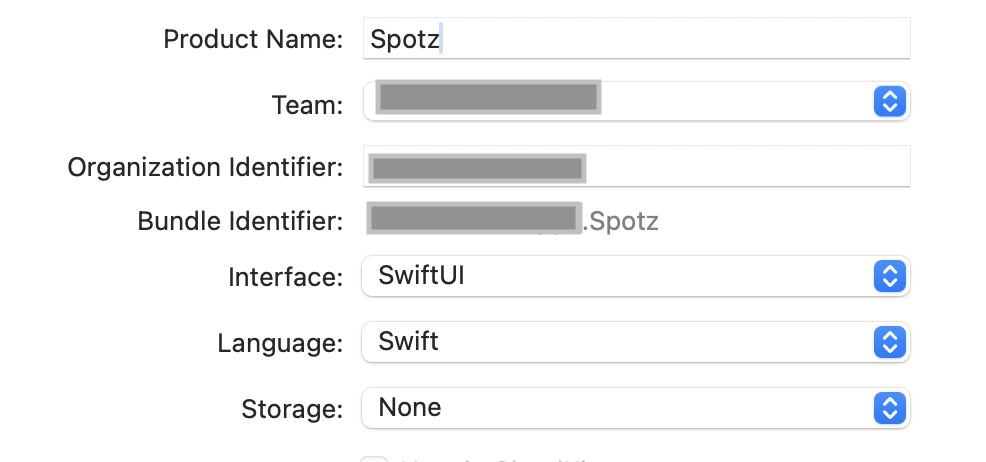
Usually, we want to take note of the Team, Organization Identifier & Bundle Identifier. For this lesson, we are going to skip focus here. Write what you will & press ‘Next’
Here is a link to the tutorial. Later, I will share how I designed my app differently.
In ‘parkData.json’ all the park locations changed to ones around Queens, with photos.
Swift & SwiftUI Tutorials from Apple
Good morning
When talking about Swift & SwiftUI with new learners, I often get asked ‘Where is the best source for learning it?” There are thousands of resources. First I want to start with the sources from Apple, which is all FREE
Develop In Swift Explorations
Develop In Swift Fundamentals
Develop In Swift Data Collections
The above books I became familiar with when I joined NYPL. While I worked there, I was trained using these materials. The resources above are primarily focused on UIKit, with small segments featuring SwiftUI. Swift Explorations & Fundamentals help learners understand the basics of Swift with UIKit, and Data Collections shares how to work with complex UIs, such as Table views & Collection views, animations, and network requests.
Introducing SwiftUI (Landmarks) Deprecated
Develop Apps for Apple Platforms (Scrumdinger)Learning SwiftUI (Concepts Tutorial) Deprecated
Develop In Swift
The above websites I found while starting my SwiftUI journey. I think I had done Landmarks, later finding the Concepts Tutorial, then I learned of Scrumdinger, and finally Develop In Swift feels like the most recent, with tutorials on how to use SwiftData & visionOS.
It is a little confusing why 🍎 made so many (on SwiftUI), with little continuity between the lessons. Feels as though the four folks (or four teams) that made these would have benefitted had they worked together. My plan is to go through these lessons and document it here with my opinion.
Did a quick search while waiting, I hadn’t realized I had skipped over 2 remaining sources from Apple:Sample Apps Tutorials (Navigation, Presenting Content, Network requests, Gestures in SwiftUI, Displaying Photos & Machine Learning) Deprecated
Swift.org– 5 different apps (Command-Line tool, a library, web service, iOS and macOS app, & embedded app for a microcontroller)
*October 8th update*
This Instruments Tutorial dropped (at least I was not aware of it when I started this idea, I learned of it from Twitter) and I believe it should be on this list
*December 26th update*
SwiftUI Pathway
All Pathways
Design, Swift, SwiftUI, Games, VisionOS & Distribution to the App Store
SwiftUI error: ‘the preview preflight must belong to at least one target’
When I get this error, it occurs when I move files within Xcode into a new group / directory, and Xcode suddenly “can’t find them” 😂
We can solve this by restarting Xcode. Building doesn’t work. Just restart Xcode.
Making a View Controller without storyboard, without xibs
Let’s walk through building a ViewController entirely in code.
Large portions of this tutorial were borrowed from iOS7 Programming Cookbook- check it out on Amazon.com if you are interested in trying out pure code examples by yourself
This isn’t as hard nor scary as it would initially seem..
Lets create an Empty application, then add on a ViewController file. You need the file, because that’s what we’ve always needed with storyboard, and xib files. Once you have that import the “ViewController.h” file into your AppDelegate implementation.

Okay- now that we have that, we need to tell the AppDelegate what to do with it.
Did you guess what we needed next? If you guessed a ViewController property then know I am cheering for you!
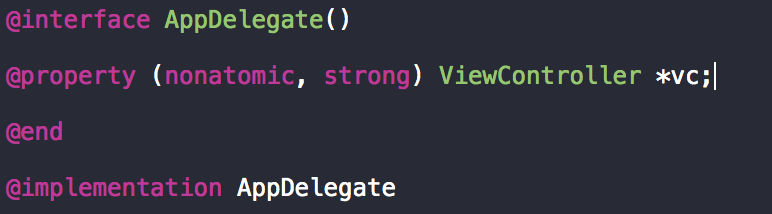
Scroll down and find application:didFinishLaunchingWithOptions method. It returns a BOOL and should be the first one. Initialize the vc property and set it to be the rootViewController.

Since I asked it to place blue as the backgroundColor of self.window, this is what we get:
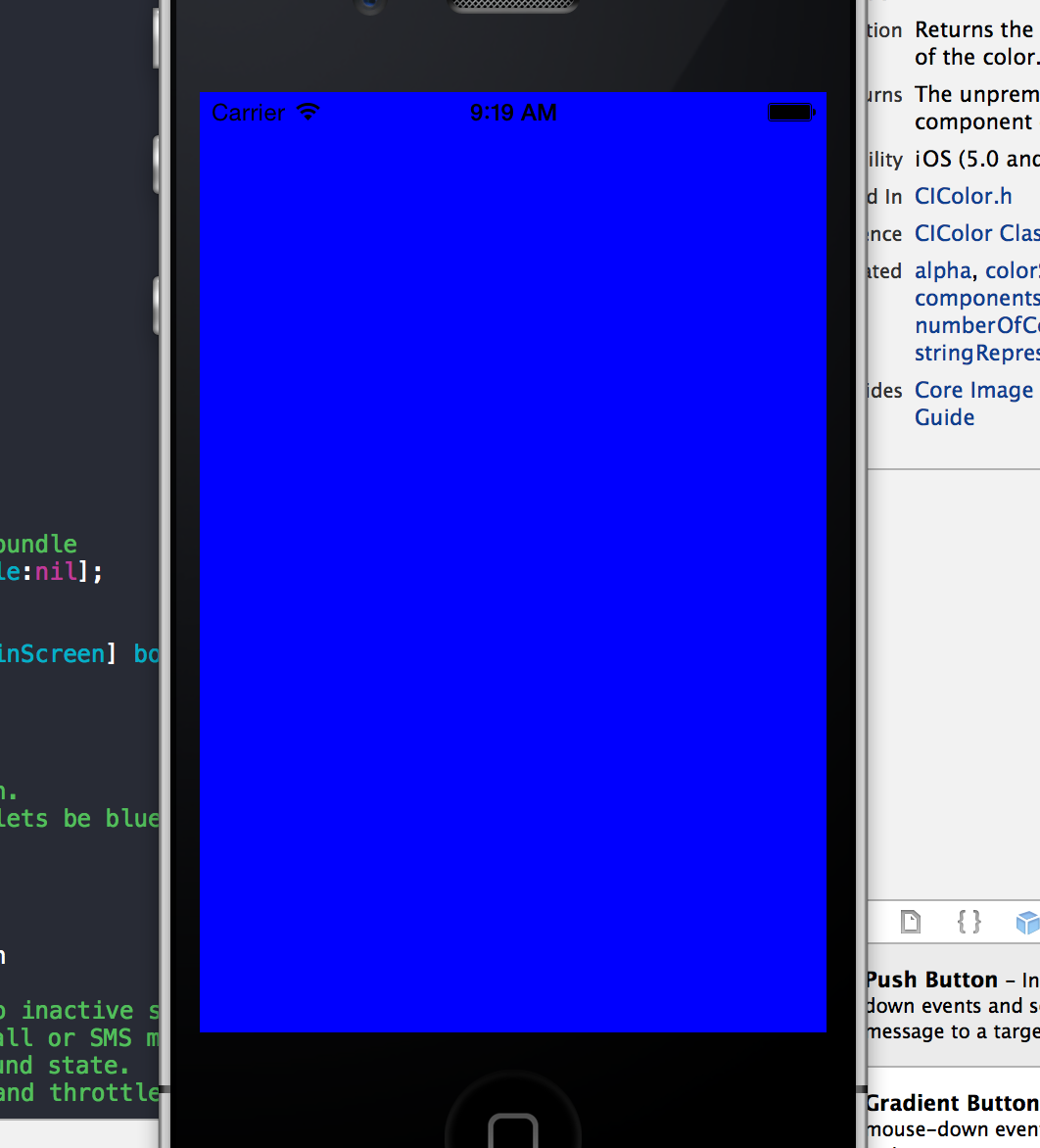
So wait- how do we really know that it worked? I’m glad you asked!
Lets hop into the ViewController and throw down something… anything is fine!
The only issue you should be aware of is once you start doing things programmatically, the rest should be programmatic as well!
I dropped in a UISlider property, set its size, placed it in the center, min/max values, and added it to the subview of the ViewController all within the ViewController implementation file. AppDelegate doesn’t know it exists.

Not so bad. Feelin nice!
Thank you.
Is there another way?
Yesterday I had a drunken rant of a post describing how much I detest blocks, this morning I sobered up and started to research another method for multithreading. Surely there has got to be one, right? Good thing is there IS a way to multithread your application without using blocks, each with their own advantages and disadvantages. Glancing at a fantastic book iOS Components and Frameworks gave a really solid review. Lets list them:
1 the Selector:
The selector gives us an opportunity to run code and bounce back between threads.


Pros: very easy on the eyes, intuitive
Cons: completion of tasks are unpredictable, chaotic, and out of order
Pretty much whatever data you put into the thread can come back out of order. If merely updating your interface is important without regard to FIFO, this should suffice. Generally, we want an order so we can try again with a different method
NSOperationQueue is a bit more involved, and it requires blocks, but smaller more manageable ones. We can begin by creating a property NSOperationQueue

alloc, init like we are supposed to in viewDidLoad

then use viewDidAppear for declaring the selector, and instantiate your invocationOperation using the selector you just created as a parameter and pass a nice NSLog message:

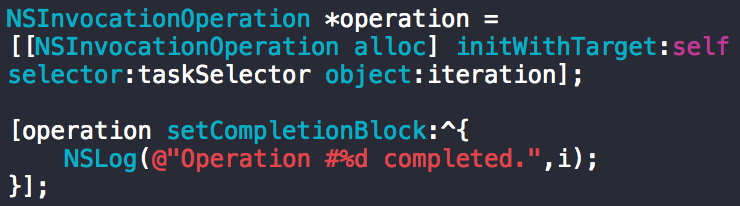
Pros: Keeps thread returns coming back in order
Cons: more code, selectors and BLOCKS (??)
Ironically block syntax is starting to grow on me after I try to find methods that avoid them. And the methods that are supposed to avoid them still use them.
There is one more which I’d like to share, dispatch_async(someVar, ^{/*block syntax*/});

These are blocks, I know. It looks like old-school C and upon reflection it is probably what scared me away from actually enjoying them.
Pros: Allows more flexibility and customization
Cons: Not beginner-friendly.
This blogger will try and research block syntax (especially dispatch_async) over the next few days. Wish me luck
**also- do yourself a favor and buy iOS Components and Frameworks. Lots of fun for developers of all ages
(void)(^IveBeenBlocked)(NSArray *confusingTopics, NSDictionary *descriptiveAdjectives);
Yesterday I felt pretty good about blocks, today I feel like descriptiveAdjective[@”cussWord”]. Exactly.
Lets say we have a completion handler which requires NSData, NSURLResponse, and NSError to be passed in as arguments. The syntax would look like:
^(NSData *data, NSURLResponse *response, NSError *error) {…}
but note inside the block only the data parameter is used…
<code=”objc”>
{
// inside the block
NSArray *responseArray = [NSJSONSerialization JSONObjectWithData:data options:0 error:nil];
NSMutableArray *issues = [NSMutableArray new];
for (NSInteger i = 0; i < [responseArray count]; i++) {
NSDictionary *firstIssueDictionary = responseArray[i];
Issue *newIssue = [[Issue alloc] init];
newIssue.title = firstIssueDictionary[@”title”];
newIssue.uniqueID = firstIssueDictionary[@”id”];
newIssue.htmlURL = [NSURL URLWithString:firstIssueDictionary[@”html_url”]];
[issues addObject:newIssue];
NSLog(@”Aww Yeah\n%@”, newIssue);
}
[[NSOperationQueue mainQueue] addOperationWithBlock:^{
}];
}];
</code>
Okay? I feel


Lets take a look at this: making blocks into typedefs
We had a project (which was a tad more intuitive) where the goal was to remake the delegate methods of UIAlertView into blocks. A bit more understandable, because if you see here:
– (void)alertView:(UIAlertView *)alertView clickedButtonAtIndex:(NSInteger)buttonIndex
– (void)alertView:(UIAlertView *)alertView didDismissWithButtonIndex:(NSInteger)buttonIndex
– (void)alertView:(UIAlertView *)alertView willDismissWithButtonIndex:(NSInteger)buttonIndex
they all do different things, but they share the same return type and arguments. So we can place them all into a typedef block:
typedef void (^TheBlock)(UIAlertView *alertView, NSInteger index);
Apple wants us to create blocks like this:
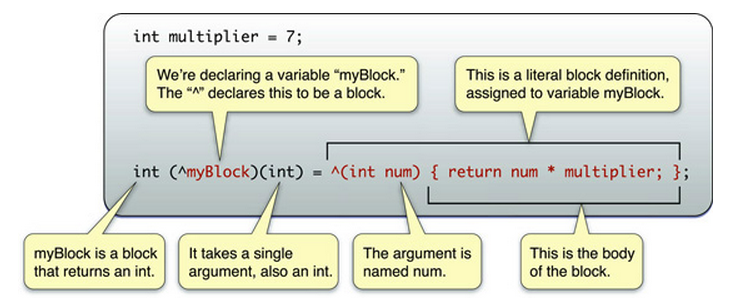
Whuuut? Why bother with that when we have functions that can do the same thing?
int multiplier = 7;
– (int) myMethod:(int)num andMultiplier:(int)multiplier
{
return num * multiplier;
}
Doesn’t that look easier?

Stop it Apple. STOP IT!
Saw a snippet of Lynda.com and that helped a bit. More like a tad.
basic block:
return type name param block literal
int (^myBlock) (int) = ^(int a) {….};
According to Lynda, we can drop the return type, name, and parameter at the left of the equals sign and just keep the literal. So this is all:
^(int a) {….};
looks better, feels better.
While watching iTunes U, they used blocks only for Multithreading. Shown here:
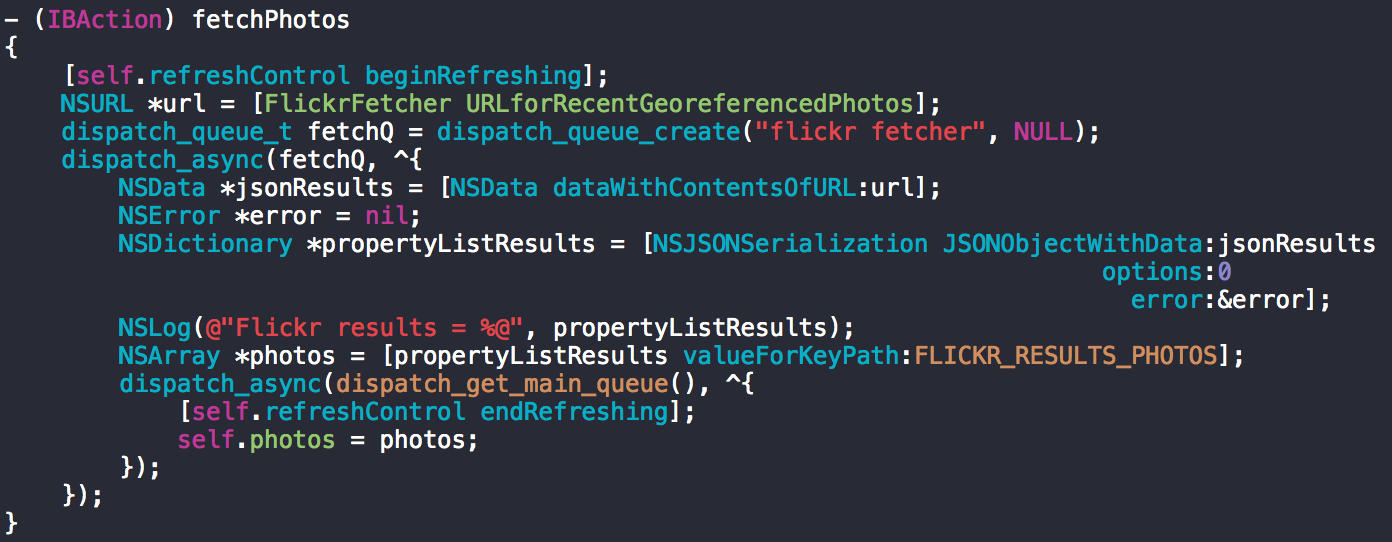
and here:
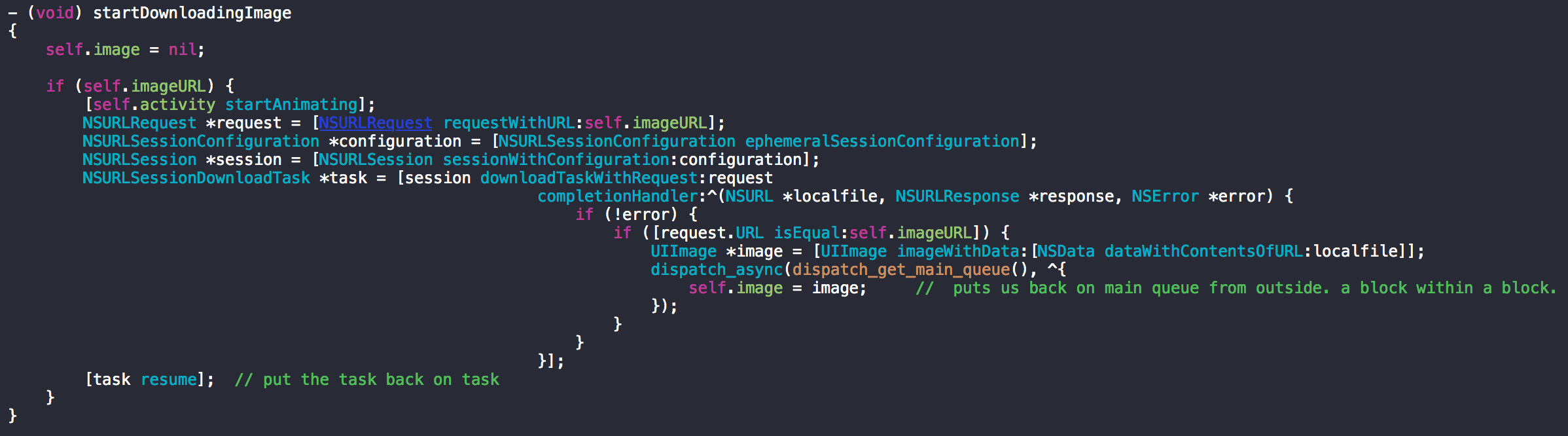
So here the blocks are only handling URL sessions. Which makes sense, if we want to wait for a website to load, the user could believe that our app crashed. So our app gets a low rating. Blocks allow us to do something else while whatever data we need is still loading behind the scenes, on another thread. The only saving grace of blocks is here.
Apple, don’t do it.

**Disclaimer WordPress is awful- I had to type this out a second time losing heaps of content because for some ridiculous reason at 9:40pm this website did not properly save my first draft and posted half of the blog. Yeah you heard me WordPress. Fix It!
Multithreading
This is something I have been dodging because of block syntax. Don’t see it very often, nor do I understand its purpose- until now.
Most apps nowadays use wireless internet. Sometimes in our haste to deploy a functioning app we forget that our devices will only process one thing at a time, unless we direct it to do otherwise. For my example, I will be borrowing heavily from the iTunes U Stanford lecture #10.
While the main focus of this lesson is the scroll view, another important lesson to gain here is that we make a call for some remote data, there will be a pause. Users hate pauses, and it causes unpredictable, rash behavior.

Let’s say we made an app that downloads a file off the internet. This isn’t a regular file, but a very large photo.
images.apple.com/v/iphone-5s/gallery/a/images/download/photo_1.jpg
images.apple.com/v/iphone-5s/gallery/a/images/download/photo_2.jpg
images.apple.com/v/iphone-5s/gallery/a/images/download/photo_3.jpg
images.apple.com/v/iphone-5s/gallery/a/images/download/photo_4.jpg
Okay- we set it up in the View Controller and everything looks great. Outlets plugged, etc.
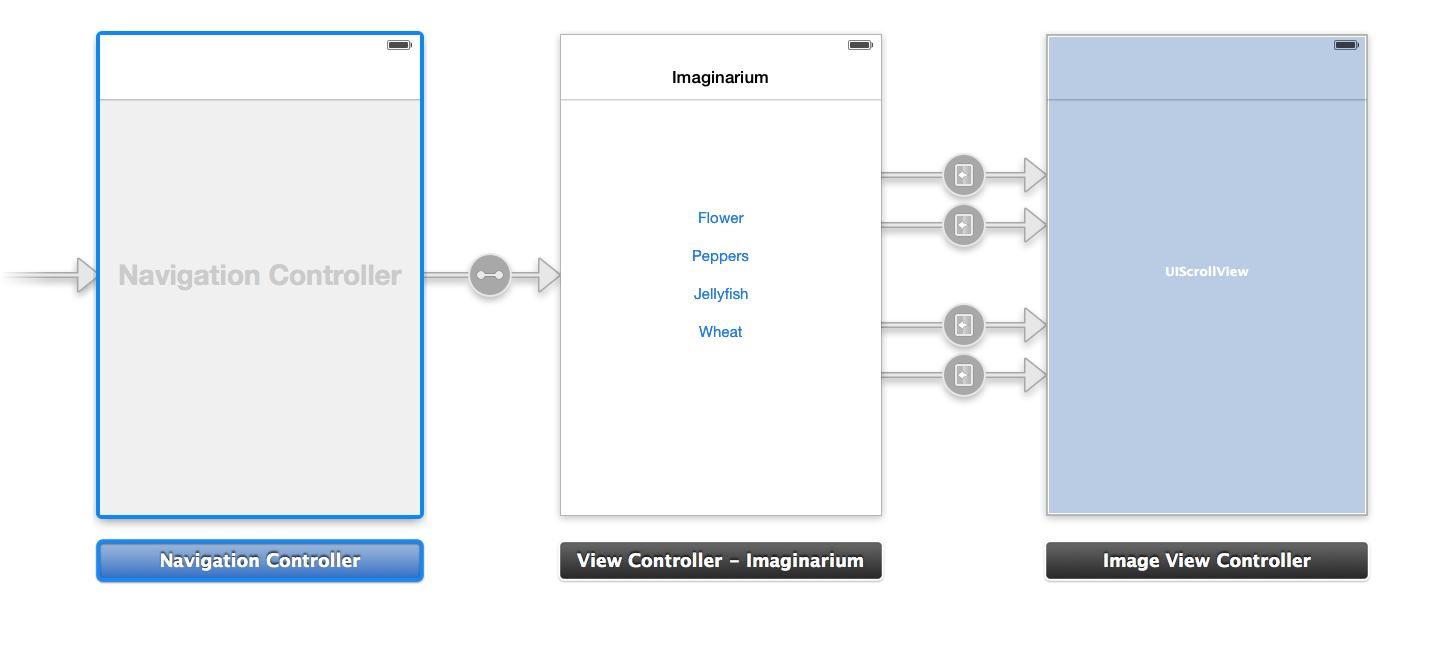
okay. Lets press the button and watch the magic happen!

What’s going on? As mentioned earlier, the app is waiting for our picture to download before giving the ‘OK’ to move to the next scene.
Enter Blocks!
 Not these blocks

This is a block. (props to GoshDarnBlockSyntax.com)
Taking my code from this:

To this:

looks more complicated, and it is (believe me!) But with good reason.
While everything happens (user presses the button) the block will step up and download the image you want in the background. It will let the user retain control of the app by making choices and staying out of a “Frozen” state. Remember, for our users a frozen app is synonymous with crashing, so try to avoid as much as possible!
We also have NSOperationQueue which is separate from the C function dispatch_async() used in the snippet above. Depending on your preference or comfort with C you may wish to use [NSOperationQueue mainQueue] instead of dispatch_async().
JSON vs XML
Good day!
Today I would like to discuss some data formats which several developers interact with constantly. Since we have many types of data to store, with varying ways to update and build upon, organization can quickly get messy. Thankfully someone came up with a method to fix the madness when we need to call a database and fetch results. Let’s get started.
XML or ‘Extensible Markup Language’ was introduced February 10, 1998. NSXMLParser is the ‘Apple approved’ way to go for parsing the document which looks like this:
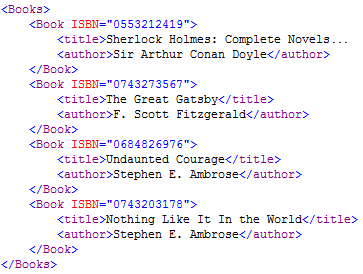
XML is described as a ‘meta language’ which allows the user to create their own vocabulary pertaining to the information.
I see it as being very similar to object-oriented type design, in the way we have a collection of ‘Books’ in the picture above, the developer can add a ‘Book ISBN’ with title & author, similar to how objects with their respective properties are formed from classes.
Best thing about it is the popularity. XML is so widely used you can’t avoid learning about it!
Bad thing about XML is the formatting. Everything is ‘tagged’, so we need an open format<blah>, closing </blah> tag which must match or BOOM text spaghetti.
JSON stands for JavaScript Object Notation which this author must confess he enjoys looking at over XML. JSON is quite versatile as a data-storing document, with the ability to hold objects, arrays, values, and strings. Not as explicit as XML, JSON is more subtle.

sorry if this is difficult to see!
so at the top of our chain, we have ‘response’ which holds a dictionary ‘groups’ that holds an array of dictionaries ‘type’, ‘name’, ‘items’ and so on and so forth.
JSON can quickly become very complex without bloating visibility. NSJSONSerialization is the class used to parse your JSON file making dictionary handling a touch easier.
Best thing about JSON is that it is quickly gaining traction. Foursquare, Yahoo, Google, MongoDB and several others are incorporating its use for data handling, and it is easy to learn from www.json.org
A change in plan…
I was going to start off with a discussion about JSON, but when I started working on a project it got me really excited. This week lets chat about UIKit Dynamics!
What is it?
UIKit Dynamics
Apple has figured out a way to manage a physics engine in iOS Foundation Like A Boss

lets discuss a little of what it does exactly:
It manages gravity (things must fall), collisions (things are gonna crash, sometimes), attachments, springs, snap, force (think like a Jedi) plus they inherit properties allowsRotation, density (affects gravity and collision reactions), elasticity (bounce), and resistance.
For some of these things, you may have had a taste of it already on your lock screen.

swipe Down
So if you swipe lightly, it won’t fall. Swipe harder and it falls with a gentle bounce at the bottom.
That’s UIDynamicAnimator, UIGravityBehavior, and UICollisionBehavior all for you folks!
Same occurs at the bottom with the camera, the lock slide, and the control center.
to see the code which you need to call, first and foremost the UIDynamicAnimator
one way calling the delegate and property
@interface ViewController () <UIDynamicAnimatorDelegate>

@property (strong, nonatomic) UIDynamicAnimator *animator;
another way is to call the class, alloc and init
UIDynamicAnimator *animator = [[UIDynamicAnimator alloc] initWithReferenceView:self.view];

[animator addBehavior:someDynamicBehavior];
UIGravityBehavior works just the way you would imagine:

It will make things fall. They will fall toward the home button, no matter which way the phone orientation is.
to fix this there is a method called setGravityDirection:CGVectorMake(x float, y float) which can “sway” the direction of -whatever- is falling in the direction you want. For a drop down action, x stays at 0.0f and y can be any float between 0.1 and 1 (1 making us fall the fastest).
If x is incremented to 0.1, our object will “fall” to the right, -0.1 and it “falls” to the left.
If y is made negative, it will “fall” up.
It makes me curious if we could tap into the gyroscope and make our “falling” dynamic?

Second, it should be noted that if we don’t have UICollisionBehavior activated, our object will fall right off the phone! (and out of sight) Lets call that.
UICollisionBehavior *collide = [[UICollisionBehavior alloc] init];
collide.translatesReferenceBoundsIntoBoundary = YES;
Why ‘YES’? Because it’s a BOOL.
Seriously, it will make our view boundary the limit for which things to contact when ‘falling’. Without it we will have no limit, and objects will ‘fall’ right off the phone.

It has been said that UIKit Dynamics and AutoLayout don’t play nicely. Keep them apart until Apple teaches them to share screen real estate (iOS 8?)
Why is this important?
Previous to iOS7, it was not native. We would need an engine imported from somewhere else. For developers, it is easier to make games, or apps that react to your users’ particular movements or touch patters.
props to ComedyCentral, Photobucket, CultOfMac & 3dpop for the pics, iOS Components and Frameworks for some snippets!
 mvilabrera


