
This lesson got me creeped out by Pandas 🐼 😂 😭

This is all likely to change soon as we have the Observable macro for iOS, iPadOS, Mac Catalyst & tvOS 17+, macOS 14+. Let’s just take a moment and assume our deployment target is under that threshold iOS 17. At the bottom I will link guides to migrate off ObservableObject to the Observable macro, with a link to how I would have this app conform to the Observable macro
Let’s break down what’s going on:
We start with the @StateObject PandaCollectionFetcher. PandaCollectionFetcher is an ObservableObject which emits a signal when the @Published properties are updated.
Next, we tell MemeCreator (our base view for the app) to pass in the fetcher, our object representing PandaCollectionFetcher. This is an @EnvironmentObject; defined as ‘A property wrapper type for an observable object that a parent or ancestor view supplies. Using the Observable macro requires you to use a different property wrapper, @Environment.
Next up we have our Panda model, called Panda.swift. This struct conforms to the Codable protocol, which allows our type to be represented in and read from JSON. Below our Panda struct we have PandaCollection, which also conforms to Codable, this time we see the property sample, and this is here to indicate the key corresponding to the value of Panda objects in an array.
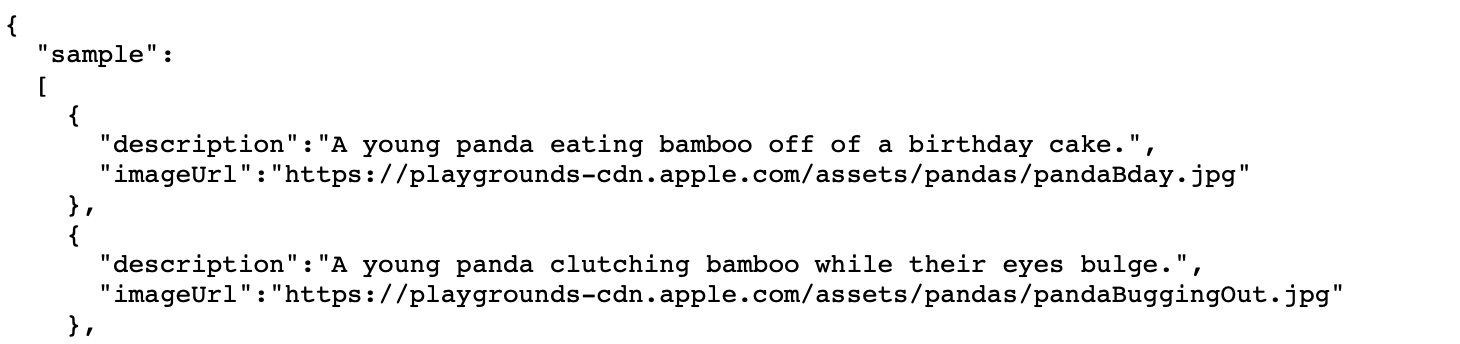
Section 3 is where things get interesting. We have a PandaCollectionFetcher which is the star of our show, the ObservableObject. There are two Published values, imageData & currentPanda. The name ‘imageData’ is a bit nebulous (for me anyway) it actually represents all the data in the array of our PandaCollection. We start the collection off with our default Panda, which was created in Panda.swift.
Scrolling down we see the fetchData function. Our function here is special because of the two markers async & throws. Let’s take a moment to breakdown what is going on under the hood, async first then throws.
When our app runs, commands behave as though they are cars on a single-lane road. Processing would behave like a traffic light- stop & go. While one function is being executed, the ‘traffic light’ turns red and nothing else moves forward. When the function is completed, it🚦 will turn green and the next function is worked on, or drives to the intersection to be processed. Here we have async, which allows our ‘road’ to behave more closely like a highway. A function with this designation will move into a new lane and unblock other functions so they can get executed on another processor. Think of our UI as only operating on one lane (@MainActor). If too many “cars” (functions) are on this one lane, there will be a traffic jam- your app will visibly lag. This article on Swift Concurrency covers this topic, the information here is detailed and beyond the scope of this post.
Error handling took me down a bit of a rabbit hole 🐇 🕳️
When we are reaching into our database for some information, or if we are doing a network request, things can go wrong. We need to have a way to notify us of what went wrong. Error handling helps us in that regard, by creating a function that will throw, the throw helps us fail gracefully. We can send the user a popup telling them that the data is bad, or the network is unavailable, so they know more than just ‘this app isn’t working’: they can understand the why.
This article on Swift Error handling is complete, yet one question nagged me. Can an initializer throw? This post on the Swift Forums answered my question.
Hang in there, gang! Almost wrapped this up 😀
The next keyword I’d like to discuss is Sendable.
Sendable relates to concurrency, as the first statement emphasizes:
‘A thread-safe type whose values can be shared across arbitrary concurrent contexts without introducing a risk of data races’
There are rules for using this keyword, but in our context we are applying it to our view ‘Meme Creator’ and it is there because of the PandaCollectionFetcher. The PandaCollectionFetcher is doing some asynchronous work that the view relies on, so we mark our view with the keyword Sendable.
Now we come to EnvironmentObject. This is our good friend, the property wrapper that observes an object for changes.
Toward the bottom of the file we see the .task modifier, which will run any commands inside this particular view. We want to use it when we have some work that will take us off the main thread (good place to use functions that require the keyword await). This goes back to what I mentioned above- we are changing lanes on our highway to let the UI update while we do what we must, then ‘merge’ back when it is time for us to wrap up. Also recall try is there if we could throw an error.
Next we have our LoadableImage which will display the photo from our URL. I am not sure why they did not add the caption also- I think that would have been cooler than to let the user type their own.
They close by showing the isFocused boolean, which displays a cursor so you can type your own message in the meme. Lastly, they have a Slider to change the font size for what you wrote, and a ColorPicker to change the font color.
For iOS 17, macOS 14 & later:
Manage Model Data in your app
Migrate to the Observable Macro
I updated the app ‘Meme Creator’ to adopt the @Observable macro here with a GitHub link:
https://github.com/FullMetalFist/PandaParade
 mvilabrera